

Support: Setup & Install

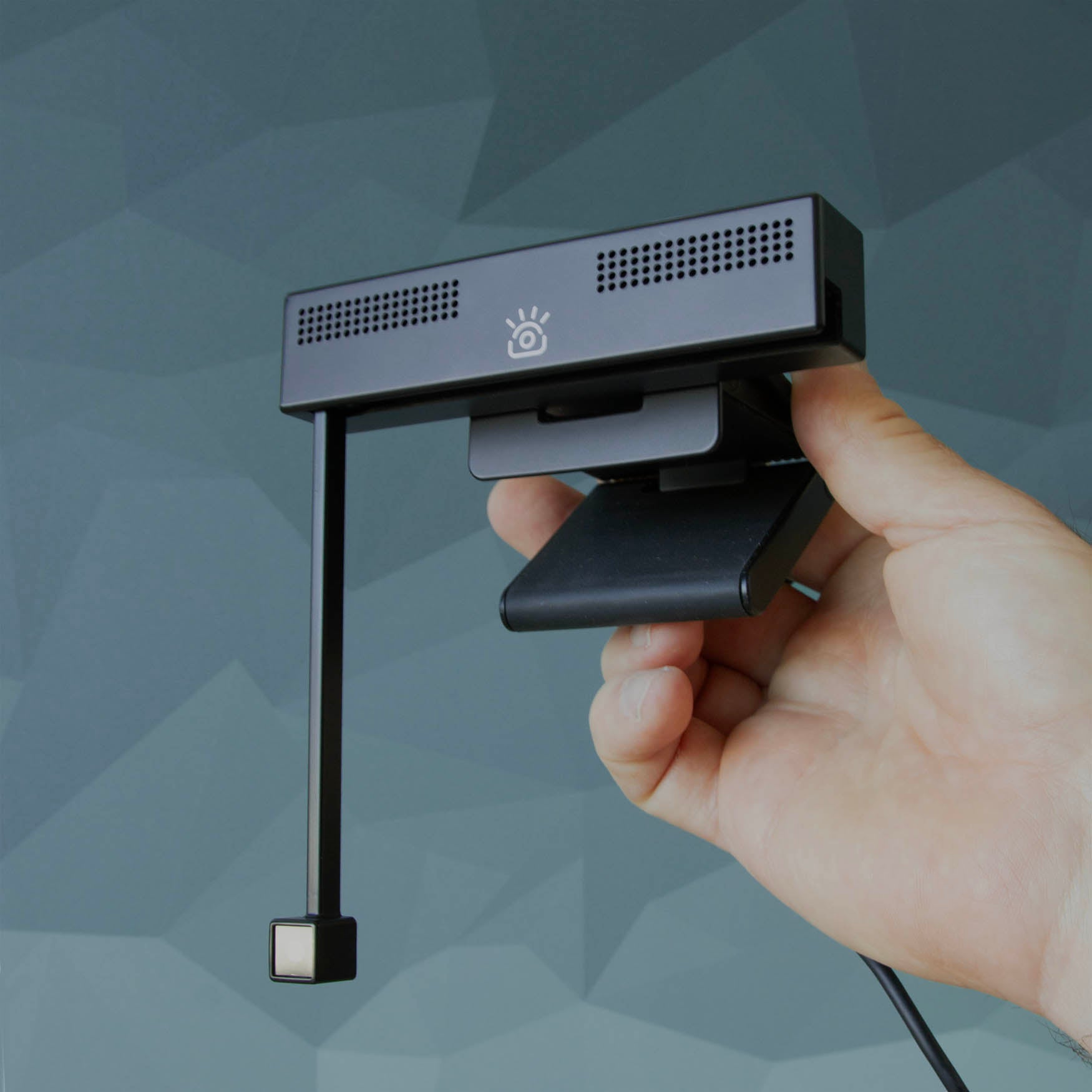
Setting up iContact Camera Pro, ProMini & ProXL
Lees meerover Setting up iContact Camera Pro, ProMini & ProXL
Using iContact Camera with Zoom, Teams, & Google Meet
Lees meerover Using iContact Camera with Zoom, Teams, & Google Meet

Setting up ProHello and Windows Hello

Positioning your camera for natural eye contact
Lees meerover Positioning your camera for natural eye contact

Setting up the All-In-One Conference Bar
Recording video from your camera
Setup & Install
- Setting up iContact Camera Pro, ProMini & ProXL
- Using iContact Camera with Zoom, Teams, & Google Meet
- Setting up ProHello and Windows Hello
- Mounting your camera securely
- Positioning your camera for natural eye contact
- Setting up the All-In-One Conference Bar
- Recording video from your camera
- Caring for your camera
Register your camera
Adds 3 months to your warranty, unlocks the free desktop app, and routes you to priority support. Works whether you bought from us, Amazon, Best Buy, Staples, B&H or Walmart.
Register your product
Still need help?
Email support@icontactcamera.com with your order number. Registered customers get priority support and a faster first reply.